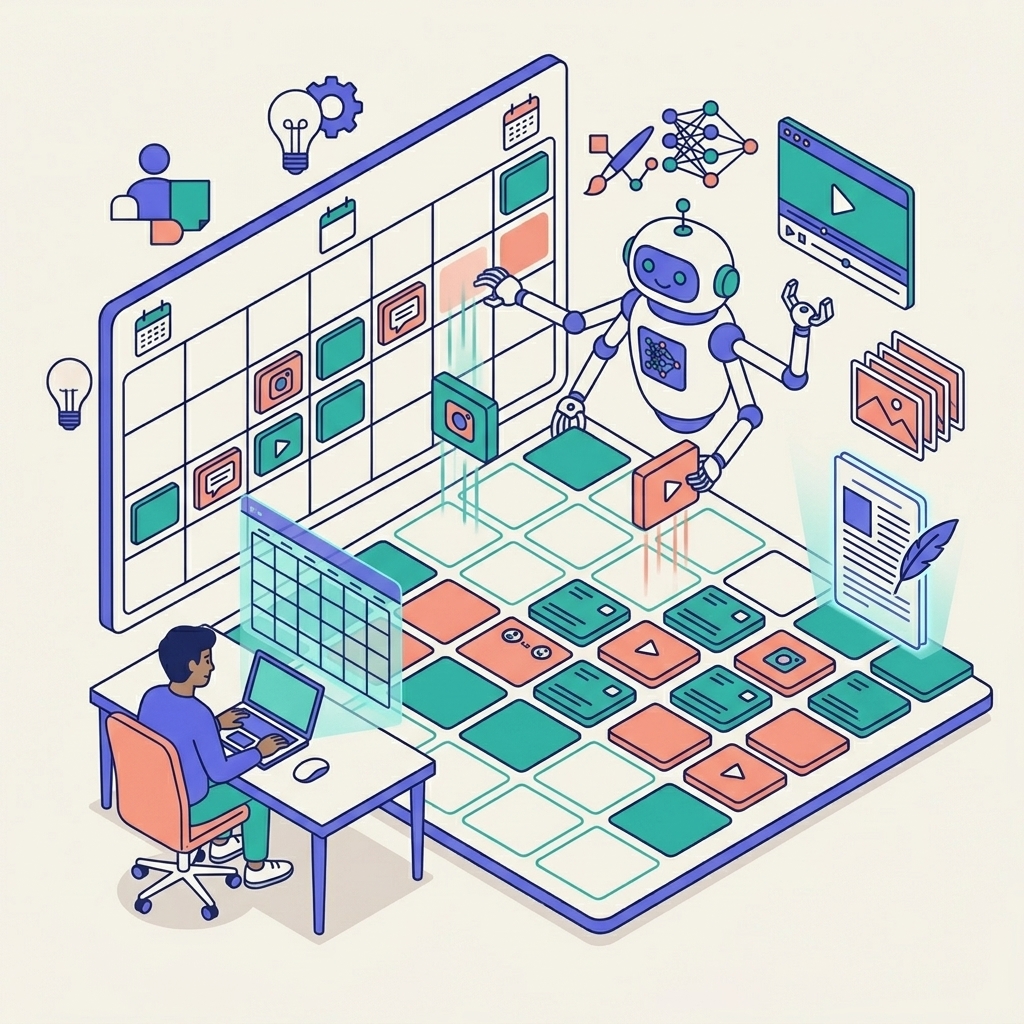
The problem: Creating 30 fresh Pinterest pins a month used to take an entire afternoon. The fix: Canva AI 2.0 + Notion integration does it in five minutes. Here is the exact workflow.
I stumbled onto this system when I was trying to keep up Pinterest consistency while moving between client projects — after 20 years in commercial design, I know better than anyone that "I'll batch it later" never actually happens.
TL;DR — The System at a Glance
- Notion holds your pin ideas in a structured database (the "Pin Matrix")
- Canva Bulk Create connects directly to Notion and generates 30 pins from one template
- Canva AI 2.0 dynamically generates background images per pin based on a text prompt
- Total hands-on time: ~5 minutes per month
Why Pinterest Over Instagram or TikTok

Instagram posts die in hours. Pinterest pins drive traffic for years.
It is a search engine, not a social feed. A well-optimised pin targeting "minimalist home office setup" will compound traffic over 18 months — no algorithm-chasing required. I've had pins from two years ago still driving consistent clicks to older blog posts.
The catch: Pinterest rewards volume and consistency. Ideally 1–3 fresh pins per day. That is where most creatives burn out.
Step 1: Build Your Notion "Pin Matrix"
Create a new Notion database with these exact columns:
| Column | Purpose | Example |
|---|---|---|
| Hook | Main pin headline | "5-App Stack for $10k/mo Consultants" |
| Sub-text | Clarifying line | "No code, no VA, no subscriptions" |
| Image Prompt | Background vibe | "Dark moody café, warm bokeh, laptop" |
| Destination URL | Where the pin links | simonbullows.com/post/my-stack |
Pro move: Use your local AI agent to auto-populate this database from your recent blog posts via the Notion API. I use Hermes — one command generates 10 pin variations per article without me touching a spreadsheet.
Step 2: Build One Master Template in Canva

Open Canva → Pinterest Pin (1000 × 1500 px).
This is the only template you will ever need. Make it premium:
- Aesthetic: Dark mode, glassmorphism, or a tight HSL colour palette. Not the free templates everyone else uses.
- Text placeholders: One box for Hook, one for Sub-text
- Brand footer: Your URL, small, bottom-centre
- Background frame: Leave an image frame — Canva AI will fill this dynamically
Step 3: Connect Notion to Canva Bulk Create
This is where the 2026 update changes everything. No more CSV exports.
- In Canva, open the Apps panel → select Bulk Create
- Click Connect Data Source → choose Notion
- Authorise your workspace → select your Pin Matrix database
Canva AI ingests all 30 rows instantly.
Step 4: Smart Mapping (30 Seconds)
Canva AI 2.0 analyses your Notion columns and automatically maps them to your template placeholders:
- Hook column → main headline text box
- Sub-text column → secondary text box
- Image Prompt column → generates or fetches a unique background image per pin (Canva Pro required)
You do not manually map anything. Review the mapping, click confirm.
Step 5: Generate — Then Quality Check in 60 Seconds
Click Generate 30 Pages.
Canva produces 30 unique, fully designed pins in ~3 seconds.
Your 60-second QC checklist:
- No text overflowing its box
- Brand footer visible on all pins
- Image aesthetics consistent with your palette
- No duplicate-looking pins side by side
Make micro-adjustments → Export as PNG → upload to Pinterest Scheduler (I use Tailwind).
The Verdict
You do not need a VA or a weekend to stay consistent on Pinterest.
The system: Notion captures ideas → Hermes populates the database → Canva AI generates the pins → Tailwind schedules them. Your only job is the 5-minute orchestration session, once a month.
Stop dragging and dropping. Start orchestrating.
Affiliate note: Canva Pro and Notion paid plans are recommended for this workflow. Affiliate links will be added before publication.